
Files, editor and change review
6 minute read · Projects & Git
When the preview looks right, open the files and changes to understand how the agent got there. You can use Vortex through conversation and still review a particular change before keeping it.
- Review a change without reading the entire repository
- Deal with edits from outside Vortex
- Send useful context to the agent
- Use files and results as conversation context
- Files, editor and diff buttons
Review a change without reading the entire repository
Open Files from the project and use quick-open to locate a filename. Files and Source Control have separate navigation: Files browses the checkout, while Source Control shows its Git changes. Select a text file to inspect or edit it; supported images and other formats use their own preview paths. File tabs and unsaved file drafts are separate from the message draft in the conversation.
Choose the checkout from the badges inside the panel, immediately below its heading. A folder identifies a project; a fork identifies an active, unmerged worktree by branch name. The selected badge has a check mark and stronger colour; the rest are muted. Hover to inspect the folder path and parent project. The small number is the changed-file count when Git information is available. These are the same project colours used in the sidebar, adjusted to your palette and theme.
Selecting a badge or a project in the sidebar changes what the tools browse. It does not move the current conversation or redirect its agent. Use Chat menu → Project & worktree… when you intend to change the chat's starting folder. See working copies.
After an agent finishes, open Source Control and review the changes. Begin with the file list: additions, deletions and unexpected files often reveal a scope problem faster than reading every line. Open a diff and choose unified or split presentation and wrapping to suit the file. Large diffs are virtualized, so use the file list to focus on the affected part rather than expanding everything.
Files and Git diffs open as tabs in the same editor rather than adding a separate panel for every file. The editor's top toolbar contains change selection, unified/split diff and wrapping controls. Expand and restore sit beside the close button.
Open Editor position in the editor heading: the single panel-and-four-arrows icon opens Move Editor. Choose Beside chat, Above chat, Above right panel, Below right panel or Float editor. The right-panel choices are disabled until Files or Source Control is open. The same icon opens Chat position in the chat toolbar. Drag the divider to adjust the space. The cards have a gap around them so you can distinguish the editor, tool panel and chats. Moving the editor preserves its unsaved drafts and changes the layout, not the file's location or Git branch. Review any unsaved draft before closing an editor tab.
For an article form, inspect the form component, validation and save handler together. Then try one valid submission, a missing title and a reload. A plausible diff alone does not prove that the user flow persists the record.
Panel widths, editor dimensions and terminal height carry across project and worktree switches within the same workspace and window. You do not need to resize each project's tools separately. Open tabs and unsaved edits remain associated with their project; another workspace keeps its own dimensions.
Deal with edits from outside Vortex
When you save an open file, Vortex checks its version so an externally modified file is not silently overwritten. If another editor or agent changed it, inspect the newer contents before saving again. Preserve your draft while resolving the difference. Reopening the entire project is not a substitute for comparing the changed file.
Binary and unusually large content may have limited preview support. Do not convert or overwrite such a file simply because the text editor cannot display it. Export or open it through a supported viewer when that is the intended task.
Send useful context to the agent
Select the relevant file or captured result and explain what needs attention. A saved vortex:// result link opens captured evidence; it does not rerun a command, query or request. Review that context for secrets before including it. When the change is ready, follow manual commits or the stricter automatic-commit workflow.
Use files and results as conversation context
Open Files in the project surface, browse or quick-open a file and inspect it in a tab. Send a selected file or captured result into the conversation with a specific question. A result link opens the captured SQL/API/mail output without repeating the original request; check whether you want that snapshot or a fresh read.
Use unified or split diffs and wrapping to inspect the intended change. Added, removed and untracked files need review too; a short assistant summary may not mention generated files or configuration edits. A large diff can be displayed progressively without needing to expand every line before discussing the result.
When saving a text file, Vortex checks for external changes. If another editor or agent changed it, compare the versions and preserve your draft before resolving the conflict. A chat draft and a file-edit draft are separate pieces of unfinished work. Finish with a reviewed commit when the snapshot is ready.
Related guides: a Git commit, the app’s checks.
Files, editor and diff buttons
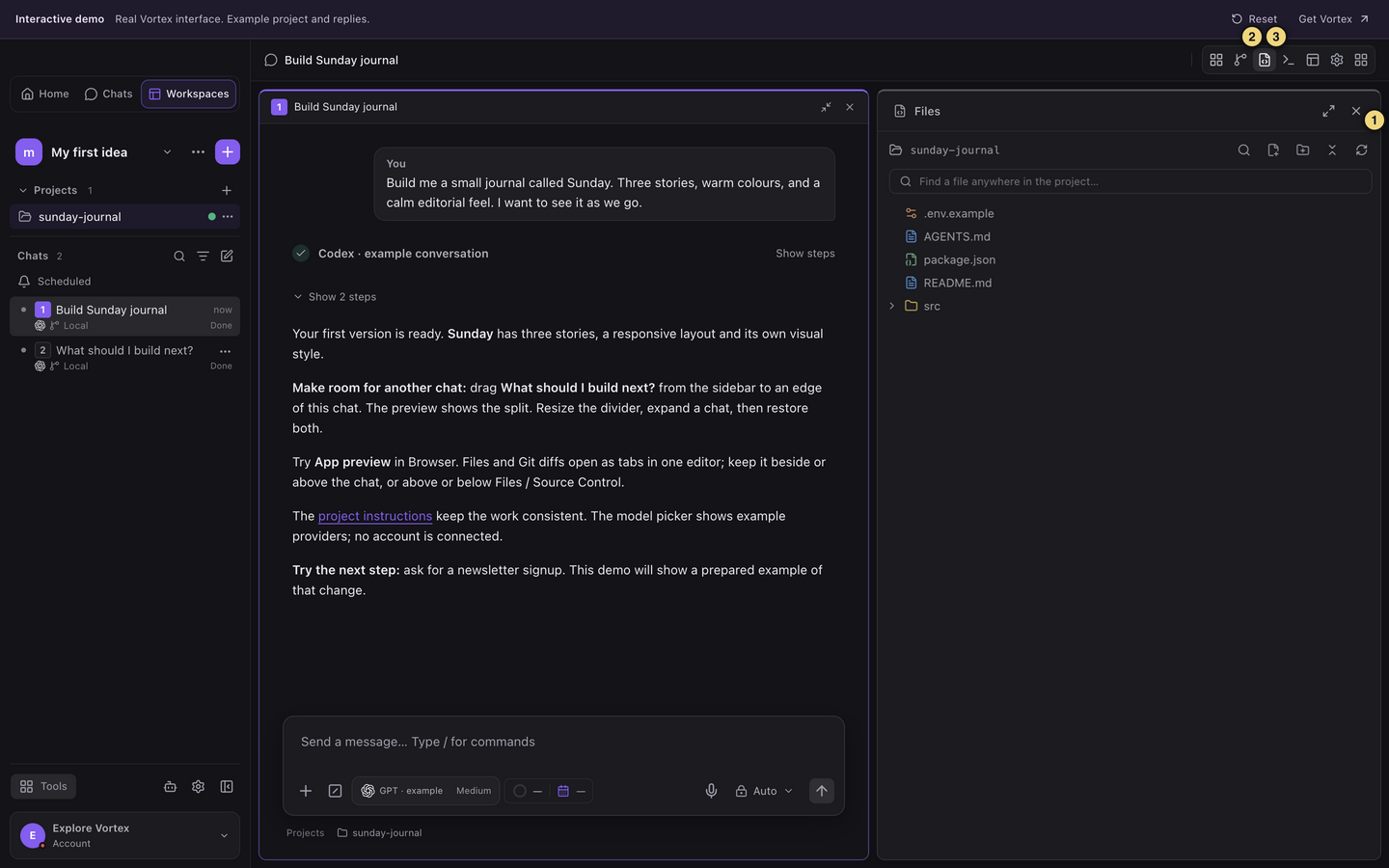
The browser-demo screenshot marks 1 the Files tree, 2 the Source Control shortcut and 3 the Files shortcut. The data is fictional. Opening a file adds it to the editor; it does not create a new independent tool panel for every file.
| Control | Effect |
|---|---|
| Files | Shows the selected project's file tree. Expand folders to inspect their contents. |
| Project / branch badge | Browses that main folder or worktree. The check mark identifies the active checkout; it does not change the chat's working copy. |
| Search / quick open | Finds a file or matching project content through the corresponding search view. Check the result path before opening duplicate filenames. |
| Editor tab | Selects an open file or diff; the dot marks unsaved changes. |
| Save file | Writes the current editor draft to disk. Cmd+S / Ctrl+S is the shortcut. |
| Refresh file | Reloads disk state through the editor's conflict-aware flow, preserving unsaved edits instead of silently replacing them. Inspect any conflict notice. |
| File history — saved changes and line authors | Opens the available file history/blame information. Git history depends on the repository's recorded commits. |
| Reveal file in tree | Selects the current file in Files. |
| Show file contents | Displays the working file. |
| Show file changes | Switches to review of uncommitted changes. |
| Edit working file | Opens editing for the current working version from its change view. |
| Previous / Next changed file | Moves through the changed-file selection. |
| Select changes | Enters the supported change-selection flow. Selection alone does not commit or discard code. |
| Unified | Displays additions and deletions together in one diff column. |
| Split | Displays the compared versions side by side. It does not split chats. |
| Wrap | Wraps long displayed diff lines instead of requiring horizontal scrolling. |
| Expand / Restore diff or editor | Enlarges the review area, then returns to its previous layout. |
| Editor position | Opens the Move Editor menu; its miniature layouts show the destination. |
| Dock editor above chat / beside chat | Moves the editor relative to the chat area. |
| Dock editor above / below Files / Source Control | Stacks the editor relative to the right-hand tool panel. |
| Float editor | Opens a movable editor surface inside Vortex. Drag its move/resize handles or use their arrow-key controls. |
| Close file / Close diff | Closes that tab or review; deal with unsaved work before confirming a discard. |
| Close editor | Hides the editor surface. It does not delete files from the project. |
The terminal is a separate card at the bottom; its divider sets its height. Panel expand/restore and close controls are in their headings. These layout actions do not change the Git branch. See Git controls.