
Open your app's database
5 minute read · SQL Client
Open the data behind the app you are building. If Small Stories saves articles, Database lets you see those stored titles rather than relying only on the page.
- Open directly from search
- Choose the connection type
- Confirm you reached the right database
- Reuse existing configuration carefully
- Keep a useful set of connections
- Connection dialog: every field
- Find your way around a session
Open directly from search
Already saved the connection? Open Vortex Search → Databases from your project or chat, search by database, server, host or driver, and choose the specific database. A server with multiple configured databases has a separate result for each. The Database tool opens over your current work and uses its normal connection and Vault flow. See Vortex Search.
Choose the connection type
Open Database and create a saved connection for the database your app actually uses. MySQL/MariaDB and PostgreSQL require the intended host, port, account and database; SQLite uses a selected local database file. Configure TLS according to the server. If the database is only reachable through a server, choose the saved SSH host and tunnel settings.
Use a development database for the first check. A name such as Small Stories local helps distinguish it from staging. Saved credentials are private; do not paste the password into a chat to ask the agent to connect. A saved connection profile can contain several database definitions. Give each one a recognizable environment and database name so you select the right destination.
Confirm you reached the right database
- Connect and inspect the database/schema list.
- Select the schema used by the app, then its article table.
- Read a few known fictional rows and compare them with Preview.
- Disconnect and reconnect to verify the saved settings.
- If useful, ask an agent to discover the saved connection by its name/ID without returning credentials.
An empty table list may mean the wrong schema or an account without metadata privileges, not a failed connection. A timeout may indicate host, port, tunnel or network reachability; authentication errors instead require checking the account and its permissions.
Reuse existing configuration carefully
Import-from-host discovery can inspect an app's database configuration through an authorized SSH host. Keep discovered secrets inside the saved-credential flow and verify the intended environment. Opening another query tab is not another saved connection profile. Read queries and edits before writing data, and SSH tunnels when the database is private.
Keep a useful set of connections
Name the profile for both its purpose and environment, such as “Article app · local”. MySQL and MariaDB use their database driver; PostgreSQL exposes its databases and schemas; SQLite points to a file on this computer. Host/port credentials do not apply to a SQLite file. For a server that needs TLS or an SSH tunnel, configure those options before connecting rather than exposing the database publicly.
After connecting, expand a database/schema and select a table. Open Content to inspect rows and Structure for columns and keys. Separate query sessions let you keep a diagnostic query open while checking a different table. Use saved names, tags, colors and search to keep local and remote targets distinguishable.
For agent help, ask: “Inspect the local article database and explain its tables. Do not change data.” The agent can discover the saved connection without printing its password. You still need to authorize writes and choose what query output may be shared with a provider. Continue with queries and row editing.
Related guides: browse and query data, project resources.
Connection dialog: every field
Open Database, then create a connection or edit an existing saved connection. A saved connection is reusable configuration; an open session is a working connection to one database.
| Field / action | Meaning |
|---|---|
| Driver | MySQL, MariaDB, PostgreSQL or SQLite. It controls the protocol, default port and available structure operations. |
| Name | A recognizable label such as “Articles — local”. It is not the database name. |
| Host / Port | Database server address and listening port. Common defaults are 3306 for MySQL/MariaDB and 5432 for PostgreSQL; use your server's actual configuration. |
| User / Password | Database credentials. These are independent of your Vortex login. |
| Database | Initial database to open. Permissions still determine which databases can be listed or selected. |
| File path | SQLite database file on this computer. Use the file picker; there is no host/port login for SQLite. |
| SSH connection source | Choose a saved SSH connection or provide connection details for a tunnel. The database host must be reachable from the SSH server. |
| SSH Host, Port, User | Login destination for the tunnel, separate from the database destination. |
| Authentication | SSH password or private-key authentication. |
| Key source | Private key from a file path, pasted content or an existing Vault key. |
| Passphrase (optional) | Unlocks an encrypted private key; it is not the database password. |
| TLS / SSL controls | Encrypt the database connection according to the driver's supported options. |
| CA certificate | Certificate path or PEM used to verify the server's certificate. |
| Client cert / Client key | Client identity for servers requiring mutual TLS. A public certificate alone is not its private key. |
| Test / connect action | Verifies the supplied connection details. A successful test does not prove permission to alter every table. |
| Save | Persists the named configuration in your encrypted account storage. |
| Cancel / close | Leaves the dialog without applying the edited configuration. |
For a tunneled PostgreSQL server, the database host might be 127.0.0.1 from the SSH host's point of view, while SSH Host is the public server address. Do not substitute your laptop's address. See SSH tunnels.
Find your way around a session
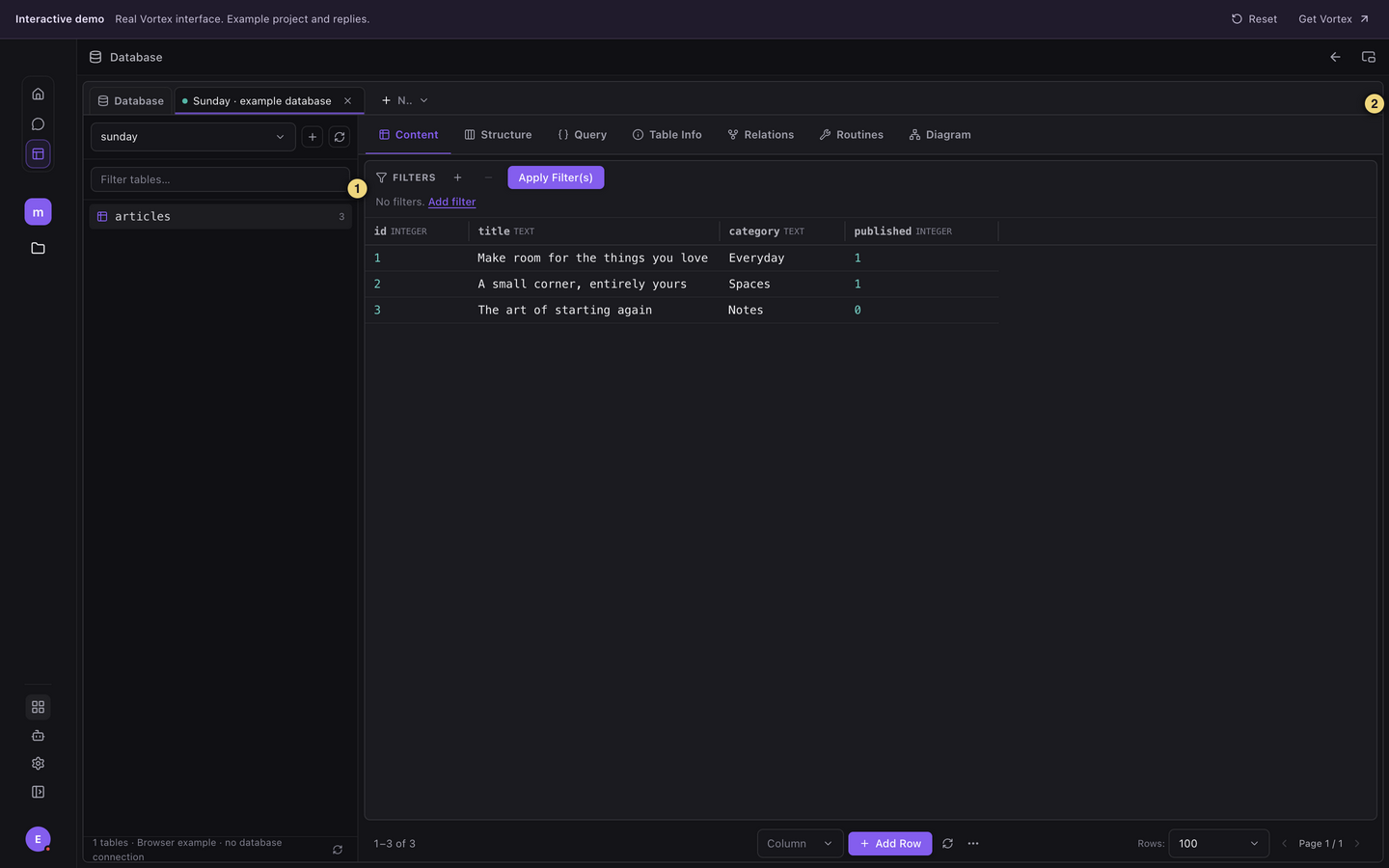
This is the real interface with prepared browser-demo data: 1 is the table list; 2 is the working area containing Content, Structure, Query, Table Info, Relations, Routines and Diagram. In the desktop app these views use your selected connection. The demo does not establish a database connection.
Open database session opens a saved connection. The database selector changes the active database; Create database creates one when supported and permitted. Reload tables, Refresh tables and the table filter operate on the list. Quick Open Table searches for a table by name. The close icon on a session closes that view; deleting a saved connection is a different action.