
Chats, drafts and layouts
8 minute read · Chats & Local Agents
Keep refining an idea in the same conversation so its decisions, files and previous results remain easy to find. Use another chat for a different piece of work, even when both belong to one project.
- Open directly from search
- Work through one change in a conversation
- Start a plain chat when you do not need a project
- Browse beside the conversation
- Arrange chats around the work
- Drafts are unfinished work
- Organize without destroying the project
- Continue a run with useful context
- Chat controls at a glance
Open directly from search
Use Vortex Search → Chats to find a conversation by title or workspace name and open it directly. Personal chats have their own label; archived and deleted chats are excluded. The same search opens saved tools over your current work without discarding the unsent message. See Vortex Search.
Work through one change in a conversation
Start a thread in the intended project, choose the provider/model and access mode, then describe a bounded result. The thread retains its own history, provider session choices and attachments. Changing the default agent in Settings affects new conversations; it does not rewrite the identity of an existing provider session.
A useful sequence is request → inspect progress → answer an approval → try the result → send a precise correction. Additional input during a run may steer the current turn or wait for the next one. Inspect the queue state before sending the same instruction again, especially after a connection interruption.
Start a plain chat when you do not need a project
A plain chat lets you discuss an idea without choosing a local project folder. It has no project settings, project instructions or per-project skills selection to edit. Open or attach a project when the task needs its files and configuration; do not treat an unrelated selected workspace as the chat's project.
Browse beside the conversation
Open Browser from the toolbar to keep pages beside the conversation. Standalone chats have no project Settings button. Use the Browser tabs to switch pages and its address/search field to open a URL or search the web.
In a project chat, the app's Preview tab sits next to website tabs in the same Browser panel and tab strip. Switch between the running app and reference pages without opening a second browser panel. Start the project when needed before testing it in the Preview tab; opening Browser alone does not start the app. See project runtime and Preview.
A standalone chat has website tabs without a project Preview tab. You can browse and discuss an idea there without creating a project or exposing project settings.
Navigation accepts safe HTTP(S) addresses. Web pages run without Node access or the Vortex app bridge, so opening a page does not give it Vortex's saved connections or local application controls. A page's instructions do not authorize an agent action.
Browser login sessions are ephemeral. Do not rely on a website sign-in surviving a restart or a new browser session, and do not treat browser cookies as saved provider-account credentials. Use the provider connection controls for agent sign-in. Opening a page beside chat also does not automatically send its contents to the agent; include the relevant context deliberately.
Arrange chats around the work
The project you browse and a chat's starting folder are separate choices. Files and Source Control badges switch the tools to another checkout while the conversation stays in place. Use Chat menu → Project & worktree… to choose where the next message starts. An ordinary main-folder chat has no repeated branch line below its title or composer; an isolated chat shows its fork icon and branch. See working-copy selection and merging.
Start with one chat. Drag another chat from the sidebar toward the left, right, top or bottom of the open chat. The preview shows the split before you release it. Split the resulting areas again to make four areas, or place another chat beside or above a particular chat. Move an open chat by its heading; press Escape during a drag to cancel.
Each visible chat has a number before its title, with the same number before that conversation’s title in the sidebar. The panel-and-four-arrows button opens Chat position; the editor uses the same icon for its own position menu. The highlighted number identifies the active area. Drag the divider between cards to resize them. Empty areas remain available for another chat.
Use Expand chat in its heading to focus on that conversation. Restore chat layout brings back the previous arrangement and sizes, including the other chats and their drafts. The heading's close button removes a chat from the arrangement; it does not delete its saved conversation.
The chat arrangement belongs to the current workspace and window on this device. It is not a cloud-synced replacement for the workspace's projects and conversations. Files, Source Control, Browser and the terminal retain their own controls. You can keep only chats in view or open the tools you need alongside them.
Drafts are unfinished work
Text, attached files, selected tool-result context and model/access choices belong to the current account and draft or chat. Moving to another chat should leave its draft available when you return. If cloud sync reports a competing draft, keep the local text until you have compared the versions. Do not clear a draft merely to remove a sync indicator.
After reconnecting, distinguish a pending message from a provider response already in progress. Retrying a failed run and sending a new message can produce different work. Use the recorded failure and current queue to decide which action is appropriate.
Organize without destroying the project
Rename or pin chats so their purpose is clear. Archive completed work to remove it from the active list while retaining its history; restoring it brings the same conversation back. Archived and standalone chats remain saved without a product count cap. Continue a useful conversation for as long as its context serves the work.
Permanent chat deletion removes the conversation and eligible unused attachments, not its project checkout. A live process stays on the device running it, even when another device can read the synchronized history. Parallel chats explain shared files and isolated worktrees; sync explains cross-device conflicts.
Continue a run with useful context
For a visual change, describe the screen and the action you tried. For a data problem, include the selected API or SQL result through its Vortex result link. Open that captured result to inspect the evidence; opening the link does not rerun the request or query. Attach only files that are relevant and safe to share with the chosen provider.
Try a follow-up such as “Keep the article layout, but add a search box above the list.” If the agent is working, inspect whether the input was delivered as steering, is uncertain, or is waiting for the next turn. Remove a queued message before delivery when the queue offers that action. A missing answer is not a reason to submit the same request several times.
Stopping cancels the run and invalidates its pending approvals. It does not undo file changes or external actions that already completed. Read the retained output and inspect the affected files before retrying. When another device owns a live run, wait for its result or manage the run on that device; synchronized history does not transfer its process.
Related guides: follow-up messages, attachments, storage and deletion.
Chat controls at a glance
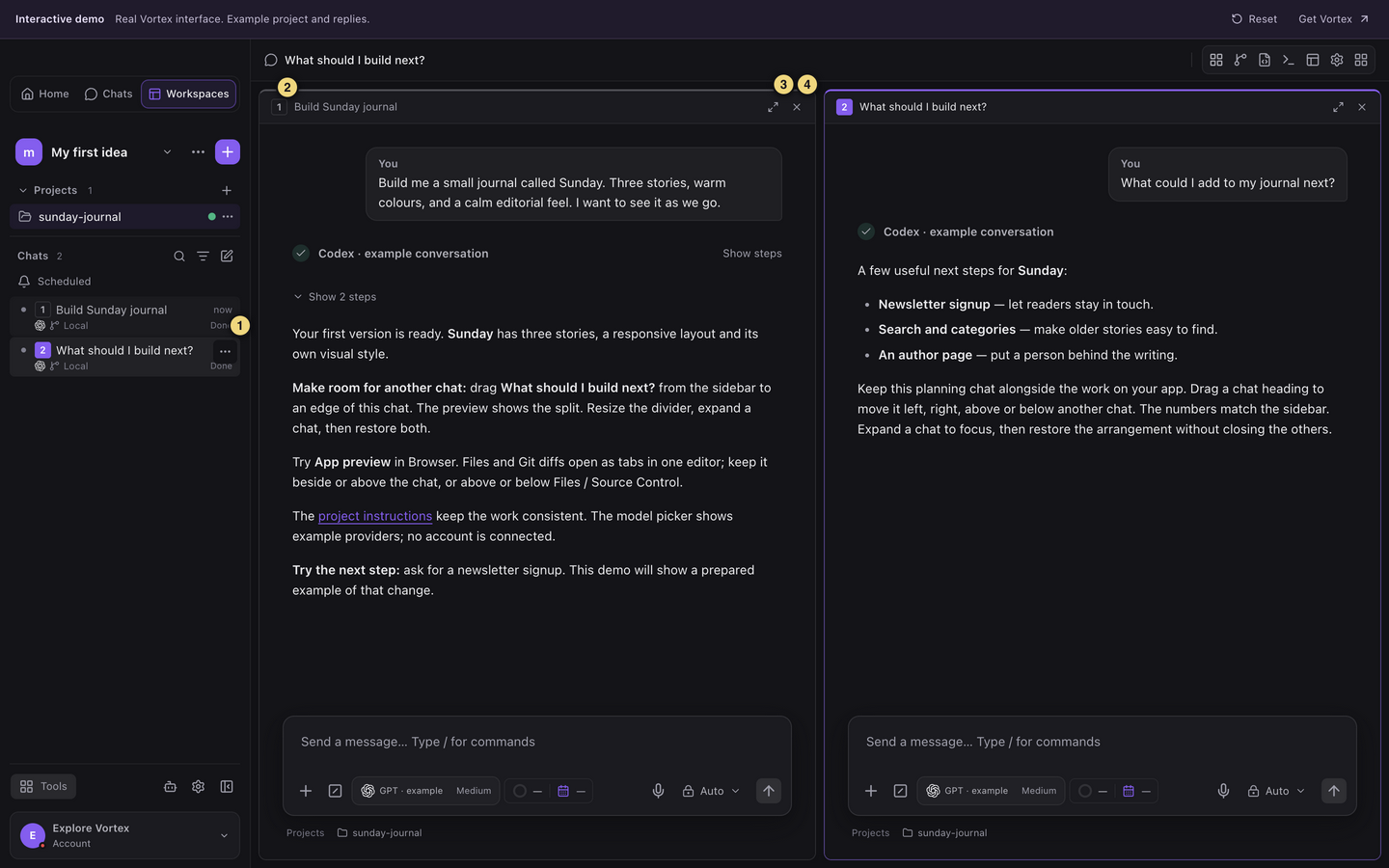
In this demo screenshot: 1 is a sidebar conversation you can drag; 2 is an area's number; 3 is Expand chat; 4 is Close chat area. A number identifies its visible area, not its importance or a separate provider account.
| Control | What happens |
|---|---|
| Home | Opens the starting screen for a new conversation or work. |
| Chats | Opens the conversation navigation. It does not duplicate a selected chat. |
| Workspaces | Selects a workspace and its projects/conversations. |
| New chat | Starts another conversation. Use the project selector in its heading to choose context; the active project is the starting choice. |
| Project name dropdown | Changes the intended project for the new chat. Check it before sending a request involving files. |
| Chat menu → Project & worktree… | Chooses this chat's starting project and main folder or isolated worktree. Available when current and queued work have finished. |
| Fork / branch indicator | Identifies an isolated working copy and opens its chooser. Main-folder chats omit this extra row. |
| Sidebar chat name | Opens or focuses that conversation. Dragging it into an area's edge offers a split preview. |
| Chat heading / drag handle | Moves the existing area. Left/right makes columns; top/bottom makes rows relative to the drop target. Escape cancels the drag. |
| Divider | Resizes adjacent chat areas. It does not change the chat's model or project. |
| Chat position | Provides the available halves and arrangements. Empty areas remain usable drop targets. |
| Expand chat | Temporarily focuses one area without deleting the other chats or their drafts. |
| Restore chat layout | Returns the saved arrangement and sizes after expansion. |
| Close chat area / × | Removes that visible area; the saved conversation remains in chat navigation. |
| Show steps | Expands agent activity details within a response. It does not restart the run. |
| Copy | Copies the selected message/response. Review sensitive content before pasting it elsewhere. |
| Retry | Starts another attempt for the relevant run; it can consume provider usage. |
| Stop | Requests cancellation of active work. Completed file or tool changes are not automatically undone. |
| Message composer | Holds this chat's draft. Enter sends according to the active composer behavior; Shift+Enter adds a line. |
| Attach files / + | Adds attachments to the message. Review selected files before sending. |
| Commands / slash | Opens the commands supported by the active composer/provider. |
| Model / Reasoning | Selects the provider/model and supported reasoning effort for the conversation. |
| Access mode | Selects the agent's permission behavior. The current chat's approvals remain attached to its run. |
| Microphone | Starts dictation using configured voice input and OS permission. |
| Auto-commit | Opts into a commit after the configured checks and required repository conditions pass. It does not publish a repository. |
Start with one chat, drag a second to its right, type an unsent draft in each, expand the first and restore. Both drafts and areas should still be present. For changes to running work, use steering and the message queue.